|
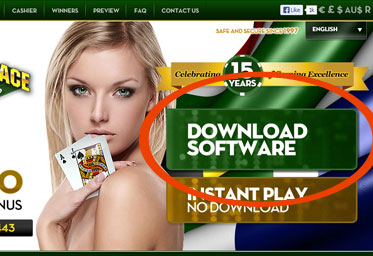
Step 1: How to download -
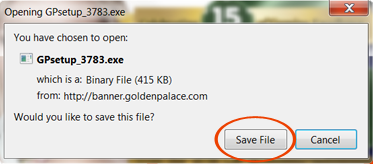
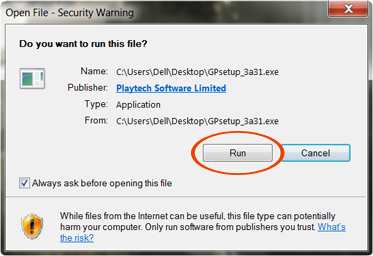
The beauty about most online casinos is that 99% of them offer you with the option of playing for fun or for real money. So now if you feel you want to play for fun befor playing for real cash, all you have to do is click on the word that says practise mode or free casino download button. A page will then appear with the option of either " Running, Saving or Cancel" you need to click the "Run" Button, and your download will then begin.
Step 2: How to install -
After completing your download session, you will then be ask to install the software. Take note that you must be connected to the internet in order for this process to perform.
- A dialog box will pop up saying "Initializing Wise Installation Wizard".
- Again you will see a box pop up saying "Install Wizard".
- Now this is a step by step guide which will guide you through the installation process.
- After this is done you will hit the "Next" button a few times then click "Finish".
- Yet another dialog box will then appear showing at what percentage % your progress of installation is.
After all of the above sessions are done, a box will appear stating that the casino has been successfully installed.
Step 3: How to open your account -
- As the software launches the "Online Registration Wizard" will appear.
- Now you have 2 options, the first option is you can open a "real" account which means you play for real money, or the second option is playing as a "guest"/ "practice mode" which means you play for fun as we mentioned befor at the top.
- Once you've selected your option you will have to fill out a few questions, this only apply's to certain casinos.
When you have completed all the necessary questions a "Registration Complete" box will pop up that gives you your account number and password..... This is to be kept in a SAFE place!!!
Step 4: How to make a purchase -
- Choose the "real" account option and make a purchase to continue.
- A dialog box will appear informing you something along the lines of "You currently have no credits to play with. Would you like to purchase credits now?". You would then select the "Yes" option.
- You are then taking to the banking menu.
- In the banking menu simply choose Firepay, Credit Card, Neteller etc.
- You will then have to fill in your personal banking details.
- Once all that has been done, a box will come up saying that your card has been successfully registered at the casino you selected.
- Then choose the exact amount you wish to purchase/play with.
- Then confirm your purchase by selecting Yes or No.
- After all the irritating stuff has been completed, you are now ready to start playing. Click out of the banking page and return to the casino to start you play....GOOD LUCK AND HAPPY GAMING!!!!!!
How to play:
- Once you feel that you're ready to start your play, all you have to do is head to the casino menu and choose a game of your choice.
- A dialog box will appear which shows your games down load progress.
- If its your first time opening the software, you will be able to see below the game you have chosen and the word "click here to down load" when you click on that word your game will start to download.
How to log on:
- The software of the casino that you down loaded will be set on your desktop as a short cut.
- When you want to start playing simply click on the icon.
- The software will then start up and a text will appear saying "Loading software"
|